
(Showit + WordPress)
This setup lets your podcast episodes populate automatically across your site using your Showit templates.
Whenever you publish an episode, and it will:
- appear in your episode archive
- appear in latest / featured sections
- open with the correct single episode layout
No manual updating of episode lists.
This guide walks you through exactly what needs to be done to set this up.
What the Dynamic Setup Actually Does
With the dynamic setup:
- Episode design lives in Showit
- Episode content lives in WordPress
- Your episodes audio files live on a podcast hosting platform
- Episodes are managed as a Custom Post Type (separate from blog posts)
- Showit pulls episode data automatically into your templates
Once connected, you don’t manually edit episode sections again.
Is This the Right Setup for You?
This setup makes sense if:
- You publish episodes often/regularly (or plan to).
- You want episodes to automatically show up across your site.
- You want each episode to have its own structured page.
- You care about long-term scalability and saving time long-term.
- You want your podcast content to be discoverable through Google.
If you’re just starting out and want to launch fast, the static setup is better.
If you want something structured and future-proof, this is it.
Before You Start (Quick Reality Check)
This setup:
- Is more technical than the static version.
- Takes time and patience to set it up (I would say around 3-4 hours to watch all the tutorials, connect and test everything)
- Is a one-time setup.
You do not need to understand WordPress deeply.
But you do need to follow the tutorials step by step carefully!
Alternatively you can book a Half VIP Day and I’ll handle the full dynamic setup for you.
Your To-Do List (Read This First)
Here’s everything you’ll do, in order:
- Make sure you’re on a Showit Advanced Blog plan that supports WordPress plugins.
- Install a Custom Post Type (CPT) plugin in WordPress.
- Create a Custom Post Type for podcast episodes.
- Connect that Custom Post Type to the Showit podcast templates.
- (Optional) Mark certain episodes as featured.
- Publish a few test episodes and confirm everything displays correctly.
That’s the full scope of work.
Step 1: Create a Custom Post Type for Episodes
A Custom Post Type is simply a dedicated content type just for podcast episodes.
This allows you to:
- Keep episodes separate from blog posts (so it can have different layout/design)
- Control how episode data is pulled into Showit
Follow this CPT tutorial step-by-step to create your custom post type (CPT) for podcast episodes. Name your new Custom Post Type something simple and straightforward like “Podcast Episodes” or just “Episodes”
➡️ Follow the linked CPT tutorial and complete this step fully before moving on.
Step 2: Connect the CPT to Your Showit Templates
Now you’ll tell Showit where to pull episode data from.
First you need to find your exact new Custom Post Type slug (a slug is basically just the CPT name but generated in a specific way without any spaces. It’s important that you get the exact correct slug because its job is to connect your WordPress content with the Showit template).
To find your CPT slug: open the CPT plugin from your WordPress Dashboard > Registered Types/Taxes > find your post type in the table and copy the name. In the screenshot below you would copy “podcast-episodes”
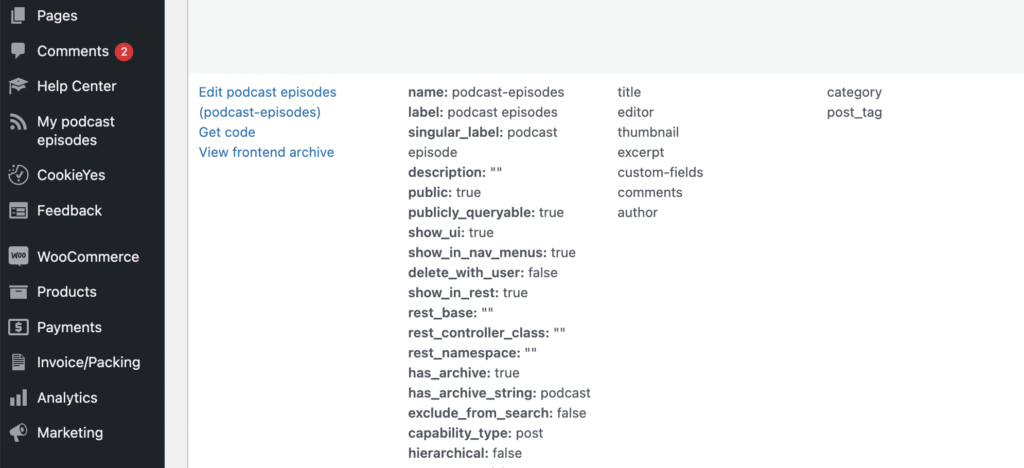
This slug is what connects WordPress episodes to the Showit layouts. Copy it.
Now you need to paste that slug into dynamic Showit sections:
Go to Podcast Home Page (Blog Template Version), and select the whole page (not any section inside it, use the left side panel and click on the page name – see screenshot below). Here under Template Info everything is set up to work correctly, the only thing you need to do is to paste your slug after in Template Name field after the word “archive-“. So it should be “archive-yourslug”. For example if your slug is “podcast-episodes” the Template Name field should have “archive-podcast-episodes”. See screenshot below:
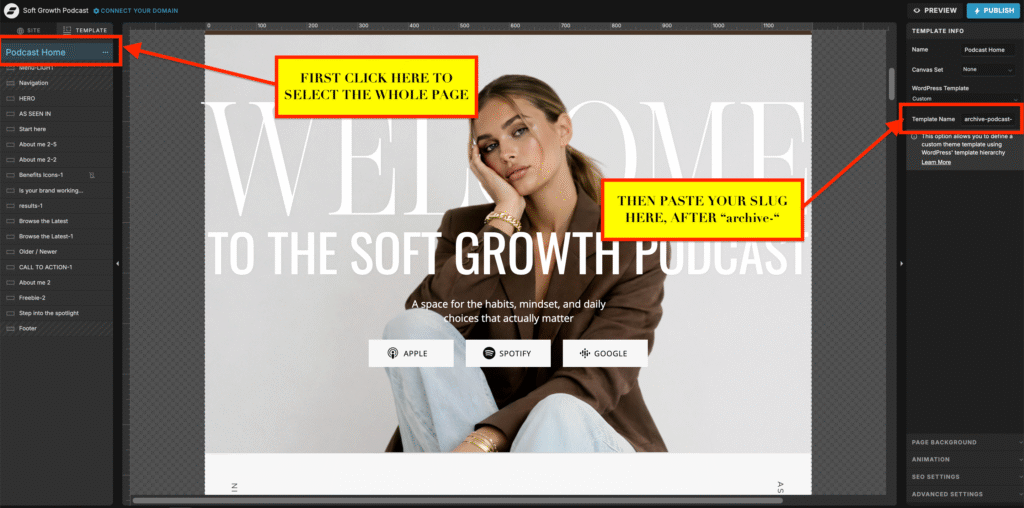
This same thing should be repeated on Podcast Simple Archive page.
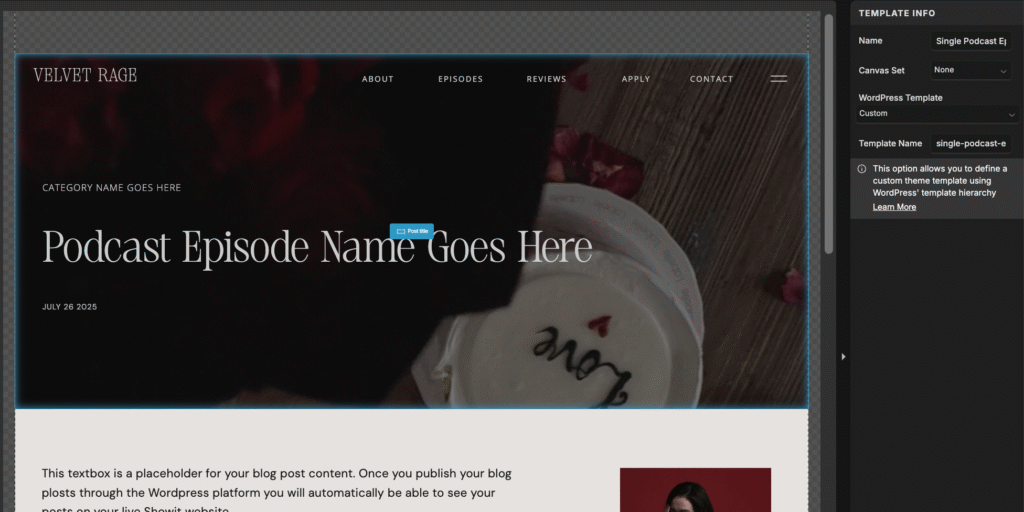
On the Single Podcast Episode page, you should do the same step but instead of words “archive-” you should put “single-” so if your slug is “podcast-episodes” it would be “single-podcast-episodes” – see screenshot below
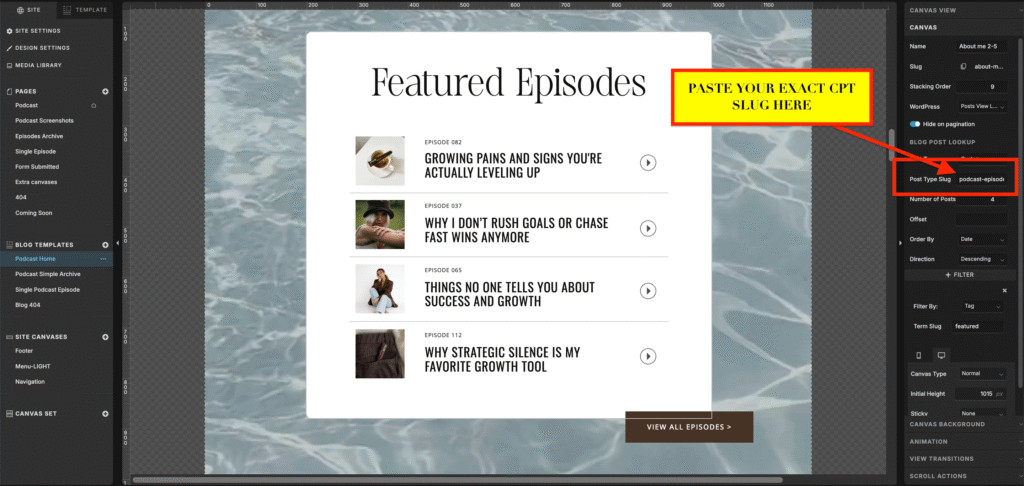
And finally on the Podcast Home Page (Blog Version) – Select the Featured Episodes Section and in the right side panel under Canvas tab, paste your slug only into Post Type Slug field (See the screenshot below)
Step 3: Publishing Episodes (Your Ongoing Workflow)
Once everything is connected, publishing an episode looks like this:
- Upload your audio to your podcast hosting platform (most people use tools like Spotify for Podcasters, Buzzsprout, Podbean, etc.).
- Create a new Podcast Episode post in WordPress.
- Add:
- Episode title
- Show notes
- Links / resources
- Optional transcript
- Audio embed or episode link
- SEO keywords if you use an SEO plugin
- Publish.
That’s it.
Your episode will automatically:
- appear in the archive
- appear in latest / featured sections
- open using the correct Showit-designed episode page
You never touch the episode list manually again.
Add Featured Episodes Tag
For some of the episodes inside WordPress you should add a tag “featured”
These episodes will appear on the Home page under featured/popular episodes.
Step 4: Test Everything
Before considering this “done”:
- Publish 2–3 test episodes (you can just put test titles and paste some random placeholder text)
- Check:
- Podcast home page
- Episodes archive page
- Featured / latest sections
- Single episode page
If something doesn’t show:
- Double-check the CPT slug spelling.
- Refresh / clear cache.
- Rewatch the tutorials and redo all the steps more carefully.
Almost all issues come from small mismatches, not from doing something wrong.